Tampilkan postingan dengan label Linux. Tampilkan semua postingan

DOWNLOAD UBUNTU 12.10

on Senin, 04 Juni 2012

Ubuntu 12.10 (Quantal Quetzal) Daily Build

Select an image

Desktop CD

The desktop CD allows you to try Ubuntu without changing your computer at all, and at your option to install it permanently later. This type of CD is what most people will want to use. You will need at least 384MiB of RAM to install from this CD.

There are four images available, each for a different type of computer:

PC (Intel x86) desktop CD
For almost all PCs. This includes most machines with Intel/AMD/etc type processors and almost all computers that run Microsoft Windows, as well as newer Apple Macintosh systems based on Intel processors. Choose this if you are at all unsure.
Warning: This image is oversized (which is a bug) and will not fit onto a standard 703MiB CD. However, you may still test it using a DVD, a USB drive, or a virtual machine.
64-bit PC (AMD64) desktop CD
Choose this to take full advantage of computers based on the AMD64 or EM64T architecture (e.g., Athlon64, Opteron, EM64T Xeon, Core 2). If you have a non-64-bit processor made by AMD, or if you need full support for 32-bit code, use the Intel x86 images instead.
Warning: This image is oversized (which is a bug) and will not fit onto a standard 703MiB CD. However, you may still test it using a DVD, a USB drive, or a virtual machine.
64-bit Mac (AMD64) desktop CD
Choose this to take full advantage of computers based on the AMD64 or EM64T architecture (e.g., Athlon64, Opteron, EM64T Xeon). If you have a non-64-bit processor made by AMD, or if you need full support for 32-bit code, use the Intel x86 images instead. This image is adjusted to work properly on Mac systems.
Warning: This image is oversized (which is a bug) and will not fit onto a standard 703MiB CD. However, you may still test it using a DVD, a USB drive, or a virtual machine.
Mac (PowerPC) and IBM-PPC (POWER5) desktop CD
For Apple Macintosh G3, G4, and G5 computers, including iBooks and PowerBooks as well as IBM OpenPower machines.

For ARM hardware for which we do not ship preinstalled images, see ARM/Server/Install for detailed installation information.

A full list of available files can be found below.

If you need help burning these images to disk, see the CD Burning Guide.

Icon Name Last modified Size Description

[DIR] Parent Directory - [   ] MD5SUMS 04-Jun-2012 15:36 245 [   ] MD5SUMS-metalink 04-Jun-2012 15:36 265 [   ] MD5SUMS-metalink.gpg 04-Jun-2012 15:36 198 [   ] MD5SUMS.gpg 04-Jun-2012 15:36 198 [   ] SHA1SUMS 04-Jun-2012 15:36 277 [   ] SHA1SUMS.gpg 04-Jun-2012 15:36 198 [   ] SHA256SUMS 04-Jun-2012 15:36 373 [   ] SHA256SUMS.gpg 04-Jun-2012 15:36 198 [   ] quantal-desktop-amd64+mac.OVERSIZED 04-Jun-2012 15:36 0 [   ] quantal-desktop-amd64+mac.iso 04-Jun-2012 15:34 723M Desktop CD for 64-bit Mac (AMD64) computers (standard download) [   ] quantal-desktop-amd64+mac.iso.zsync 04-Jun-2012 15:36 1.4M Desktop CD for 64-bit Mac (AMD64) computers (zsync metafile) [   ] quantal-desktop-amd64+mac.list 04-Jun-2012 15:34 10K Desktop CD for 64-bit Mac (AMD64) computers (file listing) [TXT] quantal-desktop-amd64+mac.manifest 04-Jun-2012 14:01 41K Desktop CD for 64-bit Mac (AMD64) computers (contents of live filesystem) [   ] quantal-desktop-amd64+mac.metalink 04-Jun-2012 15:36 1.0K [   ] quantal-desktop-amd64.OVERSIZED 04-Jun-2012 15:36 0 [   ] quantal-desktop-amd64.iso 04-Jun-2012 15:33 723M Desktop CD for 64-bit PC (AMD64) computers (standard download) [   ] quantal-desktop-amd64.iso.zsync 04-Jun-2012 15:36 1.4M Desktop CD for 64-bit PC (AMD64) computers (zsync metafile) [   ] quantal-desktop-amd64.list 04-Jun-2012 15:33 4.4K Desktop CD for 64-bit PC (AMD64) computers (file listing) [TXT] quantal-desktop-amd64.manifest 04-Jun-2012 14:01 41K Desktop CD for 64-bit PC (AMD64) computers (contents of live filesystem) [   ] quantal-desktop-amd64.metalink 04-Jun-2012 15:36 1.0K [   ] quantal-desktop-i386.OVERSIZED 04-Jun-2012 15:36 0 [   ] quantal-desktop-i386.iso 04-Jun-2012 15:35 725M Desktop CD for PC (Intel x86) computers (standard download) [   ] quantal-desktop-i386.iso.zsync 04-Jun-2012 15:36 1.4M Desktop CD for PC (Intel x86) computers (zsync metafile) [   ] quantal-desktop-i386.list 04-Jun-2012 15:35 4.0K Desktop CD for PC (Intel x86) computers (file listing) [TXT] quantal-desktop-i386.manifest 04-Jun-2012 14:02 41K Desktop CD for PC (Intel x86) computers (contents of live filesystem) [   ] quantal-desktop-i386.metalink 04-Jun-2012 15:36 1.0K [   ] quantal-desktop-powerpc.iso 04-Jun-2012 15:36 672M Desktop CD for Mac (PowerPC) and IBM-PPC (POWER5) computers (standard download) [   ] quantal-desktop-powerpc.iso.zsync 04-Jun-2012 15:36 1.3M Desktop CD for Mac (PowerPC) and IBM-PPC (POWER5) computers (zsync metafile) [   ] quantal-desktop-powerpc.list 04-Jun-2012 15:36 1.3K Desktop CD for Mac (PowerPC) and IBM-PPC (POWER5) computers (file listing) [TXT] quantal-desktop-powerpc.manifest 04-Jun-2012 15:25 38K Desktop CD for Mac (PowerPC) and IBM-PPC (POWER5) computers (contents of live filesystem) [   ] quantal-desktop-powerpc.metalink 04-Jun-2012 15:36 1.0K

FreeBSD linux

on Senin, 26 Maret 2012

FreeBSD

layar selamat datang FreeBSD
Situs web: http://freebsd.org/
Perusahaan/
pengembang:
Proyek FreeBSD

New&Best Wallpapers of Ubuntu 12.04 LTS

 New&Best Wallpapers of Ubuntu 12.04 LTS

Iain Farrell, project manager at Canonical's Design Team uploaded today the new wallpapers for the up-coming Ubuntu 12.04 LTS (Precise Pangolin) operating system.

The wallpapers are not yet formally uploaded in the current development release of Ubuntu 12.04 LTS, but we have the originals and there are 16 new beautiful photos.

Without any additional launching, we'll represent below the photos that were already approved for the final version of Precise Pangolin.

The new wallpapers in the Ubuntu 12.04 LTS release are, as presented below: Empty by Dawid Huczynski, Haramat by lefthandgergo, London Eye by Fernando Garcia, Murales by Jan Bencini, Purple Leaf Streak by Philip Taylor, Soft Golden Leaf by Philip Taylor, Speed_precise by pr09studio, The Brew by Fernando Garcia, Tokyo Tower by nubuto_m, Untitled by Angela Henderson, Untitled by Marcus Moller, Odd Man In by Deacon MacMillan, Path to Heaven by nurionn, The Forbidden City by pixelflake, White pigeons by noombox, and White flowers by Zuphi.


Soft Golden Leaf by Philip Taylor 


London Eye by Fernando Garcia


There were 20 finalist in the Ubuntu 12.04 Wallpaper contest that took place on Flickr, but looks like four of them were not accepted. Congrats to the authors of these beautiful photographs!

On April 26th, Ubuntu 12.04 LTS will become the 16th release of the popular Ubuntu operating system.

One of some of the interesting features that will be show in Ubuntu 12.04 LTS (Precise Pangolin), we can mention the upcoming Mozilla Firefox 12 web browser and Mozilla Thunderbird 12 email client, and the LibreOffice 3.5 office suite.

Ubuntu 12.04 LTS will be powered by Linux kernel 3.2 and the GNOME 3.2 desktop environment (with several components upgraded to version 3.4) and an improved Unity interface.

Don't forget to visit next Thursday (March 29th) for a detailed report on the Ubuntu 12.04 LTS (Precise Pangolin) Beta 2 release, where we will unveil more of Precise's new features!

See complete New Wallpapers of Ubuntu 12.04 LTS here: http://www.flickr.com/groups/1899757@N25/pool/

Download Nvidia Display Driver 295.33 for Linux, FreeBSD, Solaris


Nvidia released version 295.33 of its graphics driver for Linux, Solaris and FreeBSD operating systems.


Nvidia 295.33 brings support for the GeForce GTX 680, GeForce GT 630M and GeForce GT 620 GPUs, it fixes H.264 decoding of video streams in VDPAU, fixes DisplayPort audio issue on GeForce GT 520 cards, and support for recent Linux kernels.

Among other features in Nvidia 295.33 we can mention support for 3D Vision ready displays with a built-in Nvidia 3D Vision infrared emitter and some other small fixes. For more details read the entire changelog here.

Nvidia 295.3 is available right now (see download links below) for Linux, BSD and Solaris operating systems, supporting both 32-bit and 64-bit architectures.


Ubuntu 11.10 Mac Theme (Macbuntu)


Ubuntu 11.10 Mac Theme (Macbuntu) is the favorite themes for Ubuntu. So many user use this theme besauce Mac is one of the beautiful OS in the world .Desktop,Wallpaper's,Icon Everything is amazing
make your ubuntu more powerfull, beautifull and nice.
Special features of macbuntu will make you happines..

If you want install theme only,use this link


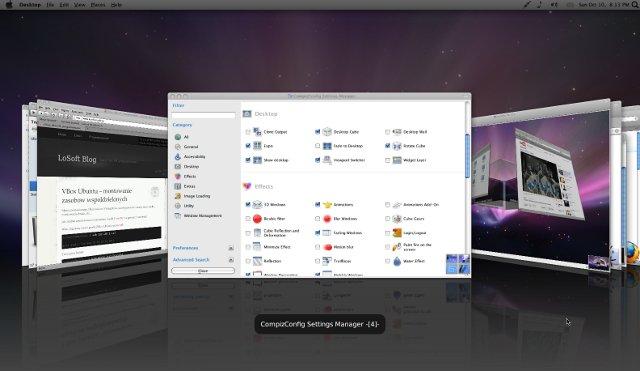
Mac OS X Transformation Pack Macbuntu theme - Compiz Desktop and Rotate Cube

Description Macbuntu :

Mac OS X Transformation Pack. Macbuntu is an open-source program, designed to transform Linux’s appearance and layout into a Mac OS X environment. Although Macbuntu is dedicated to Ubuntu Linux OS, it could be used in other OS based on Debian/GTK


Features Macbuntu :

* Attention: Script significantly changes the desktop.
* Attention: Not compatible with Ubuntu Netbook Edition
* Attention: The Global Menu does not current work correctly for all applications. This is a known issue.
* Paw-OSX and Paw-Ubuntu Plymouth themes
* Macbuntu sound theme
* Macbuntu GTK theme based on GTK Leopard
* Macbuntu-Icons based on Mac4Lin and Faenza Icons
* Macbuntu-Cursors based on Shere Khan X
* Mac OS X backgrounds and fonts
* Compiz Extras, Global Menu, Docky, Ubuntu-Tweak
* Preconf for login screen, metacity, compiz, window theme, backgrounds, cursors, icons, docky and top panel

Compiz Shift Switcher mac ubuntu theme 11

 
Macbuntu Compiz Scale like Mac OS X's Expose All Windows


Download Macbuntu theme File (Size 40 MB,tar.gz format)

ubuntu 11.10 mac theme,macbuntu 11.10,mac theme for ubuntu 11.10,mac theme ubuntu 11.10, download macbuntu, download ubuntu theme, best ubuntu theme, free ubuntu theme,Ubuntu 11.10, ubuntu 11.10 theme,ubuntu theme,gnome3,Download Free Ubuntu 11.10,Macbuntu 11.10 ,Mac theme for Ubuntu,How to install Mac apps in ubuntu ,Free Linux games,Oneiric Ocelot


SETTING MODEM SMARTFREN AC682 DI UBUNTU

on Jumat, 23 Maret 2012
Bingung mau bikin tulisan apaan jadi bikin tutorial isen buat jalainin modem smartfren ac682 aja, berhubung modem ini modem jenis baru (keluaran baru) driver untuk ubuntunya juga belum langsung disediakan, tapi jangan takut, sedikit trik dengan tools wvdial was wis wus modem smartfren ac682 dapat dikoneksikan dengan baik :D
Sebelum mulai pengkonfigurasian ini, jangan liat yang lainnya dulu, ikuti aja step by step nya, soalnya kalau dilihat nanti jadi males, padahal gampang kok.
PERSIAPAN
Well sebelum mengkonfigurasikannya tentunya kita butuh tool untuk menjalankan modem ini, tool yang dibutuhkan adalah beberapa library tambahan dan tentunya wvdial itu sendiri, berikut daftar yang dibutuhkan
  • libuniconf4.6_4.6.1-1_i386.deb
  • libwvstreams4.6-base_4.6.1-1_i386.deb
  • libwvstreams4.6-extras_4.6.1-1_i386.deb
  • libxplc0.3.13_0.3.13-1build1_i386.deb
  • wvdial_1.61-2_i386.deb
Kalau ngak mau repot download satu-persatu, monggo udah saya paketin di SINI     DISINI
Jika semua tools sudah didownload, ektrak jika download .zip nya, taruh semua file di /home supaya mudah, bagi yang merasa sudah expert dalam pemasangan file .deb silahkan pilih direktori lainnya, ketikan perintah berikut ini
$sudo dpkg -i *.deb
perintah diatas akan menginstall semua file .deb yang ada pada folder /home.
KONFIGURASI MODEM
Pada sistem operasi Linux Ubuntu, Modem smartfren ac682 dideteksi sebagai media penyimpanan masal dan bukan sebagai modem, oleh karena itu langkah pertama yang harus dilakukan adalah melakukan “eject” pada modem smartfren, kemudian dilakukan pendeteksian vendor dari modem tersebut, berikut langkahnya :
    • Untuk mengecek apakah modem masih dideteksi sebagai penyimpanan masal atau sudah terdeteksi sebagai modem, langkah pertama adalah buka terminal (CTRL + ALT + T), ketikan perintah berikut “$ lsusb” tanpa tanda kutip.
    • Perhatikan gambar berikut, jika modem masih dideteksi 19d2:ffde maka modem belum siap digunakan
Modem belum terdeteksi sebagai modem
  • Jika masih berstatus ffde, gunakan perintah berikut “$ sudo eject /dev/sr1″ tanpa tanda kutip, kemudian gunakan perintah “$ lsusb” kembali, jika berhasil modem akan terbaca sebagai modem dan bukan sebagai penyimpanan masal lagi 19d2:ffdd (NB : untuk netbook, gunakan perintah “$ sudo eject /dev/sr0″)
Modem sudah terdeteksi
  • Jika sudah, kita lakukan pengidentifikasian vendor, ketikan perintah berikut “$ sudo modprobe usbserial vendor=0x19d2 product=0xffdd” tanpa tanda kutip.
  • Tahap ke dua sukses, sekarang lanjut tahap konfigurasi kartu.
KONFIGURASI KARTU SMART DENGAN WVDIAL
  • Kalau modem sudah terdeteksi, sekarang saatnya konfigurasi kartu smart, buka wvdial.conf dengan menggunakan editor, untuk lebih mudah gunakan editor gedit pada terminal
  • Buka terminal CTRL + ALT + T
  • Ketik “$ sudo gedit /etc/wvdial.conf”
  • Masukan konfigurasi sebagai berikut :
[Dialer smart]
Init1 = ATZ
Init2 = ATQ0 V1 E1 S0=0 &C1 &D2 +FCLASS=0
Stupid Mode = 1
Modem Type = Analog Modem
Command Line = ATDT
ISDN = 0
New PPPD = yes
Phone = #777
Modem = /dev/ttyUSB0
Username = smart
Password = smart
Baud = 460800
  • Simpan, dan keluar dari editor.
MENJALANKAN APLIKASI (Connect)
  • Untuk mengkoneksikannya, gunakan perintah “$ sudo wvdial smart” tanpa tanda kutip (NB : Komputer akan mengalami “lag” saat melakukan koneksi, ngak perlu khawatir, cuma sebentar, tungguin aja)
  • Jika konfigurasi benar, akan muncul gambar seperti berikut :
    Modem terkoneksi dengan baik
SHORTCUT / BASH SHELL KONEKSI
  • Pasti repot kalau ngulang-ngulang proses tersebut kan?, so check this out, kita buat file .sh agar langsung konek dengan sebuah perintah
  • Buka terminal (CTRL + ALT + T)
  • Ketikan “$gedit smart.sh”
  • Masukan perintah .sh sebagai berikut :
#!/bin/bash
sudo eject /dev/sr1
sleep 2
sudo modprobe usbserial vendor=0x19d2 product=0xffdd
sleep 2
sudo wvdial smart
  • Simpan, dan keluar dari editor, berikan hak akses dengan perintah “$ sudo chmod 777 smart.sh” tanpa tanda kutip.
  • Untuk menjalankan, cukup ketikan di terminal “./smart.sh” tanpa tanda kutip
Well, sekian tutorial setting modem smartfren ac682 di Linux Ubuntu, ada yang belum konek, komen aja disini :D

sumber :  http://greenbel.wordpress.com/2011/11/12/setting-modem-smartfren-ac682-ubuntu/